
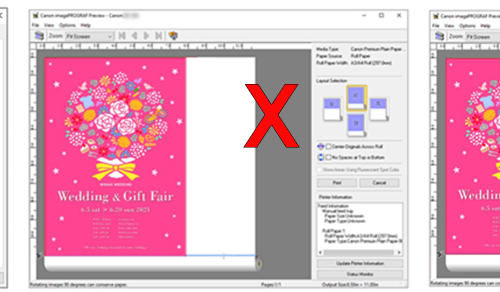
One of the most common calls we get from large format printer owners isn’t about a fault with the machine at all — it’s a job that’s come out at the wrong size, in the wrong orientation, or accidentally printed in monochrome. By the time anyone notices, a length of expensive media and a fair bit of ink has already gone to waste. The good news is there’s a single setting that catches almost all of these mistakes before they happen.
On Canon imagePROGRAF drivers, it’s a small checkbox on the main tab of the print settings window: Preview before printing. Epson and HP drivers and RIP software have an equivalent option, usually just as easy to find. Tick it once and, instead of sending the job straight to the printer, you get a full on-screen preview showing exactly how the image will sit on the roll — size, orientation, colour mode and all — before a single drop of ink is used.
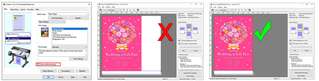
Left: the Preview before printing checkbox on the driver’s Main tab. Right: the preview screen catching a job that’s about to print cropped (red X) versus the same file correctly fitted to the roll (green tick).
It sounds like a small thing, but the mistakes it catches are the ones that cost the most when they slip through: an image rotated 90 degrees from what you intended, a job that’s been scaled to the wrong size for the roll width, artwork that’s been accidentally cropped or cut off at the edge, or a print that’s silently switched to monochrome instead of colour. Any one of these means re-running the job — wasting the media, the ink, and the time already spent, on top of the time to print it again.
It’s particularly useful while newer team members are still getting used to a printer, but plenty of experienced operators leave it switched on permanently simply because it takes seconds to check and can save a full roll’s worth of media if something’s not quite right.
On a Canon imagePROGRAF driver, open the printer preferences, and on the Main tab you’ll see the Preview before printing checkbox near the bottom — tick it and it stays selected for future jobs until you change it. If you’re on Epson or HP hardware and aren’t sure where the equivalent setting lives in your driver or RIP, get in touch and we’re happy to talk you through it.
If you’re running into repeated misprints, or just want a hand getting the settings right on a new machine, get in touch — we’re always happy to talk it through rather than leave you guessing.
We’re now in our 36th year supplying large format printer solutions and have sold over 7,000 printers to architects, photographers and signage businesses across the UK — you can read more about us here.