
Chat with us, powered by LiveChat

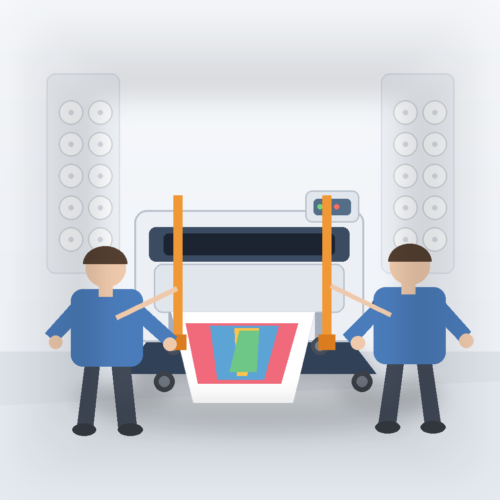
Moving your Canon Large Format Printer

Preparing to Transfer the Printer

To protect the internal parts in transit, always follow these steps before transferring the printer to a new location.

For details on packing the printer and installing it after transfer, see Reinstalling the Printer.

Important

  • Avoid tilting the printer excessively in transit. This may cause ink in the printer to leak and cause stains.
  • When you select Prepare to move, any registered web services will be canceled. After moving your printer, set up your web services again.

Note

  • The maintenance cartridge replacement may be required when you execute the Prepare to move menu. Prepare the maintenance cartridge in advance while referring below. The number of maintenance cartridge required varies depending on the amount remaining in the maintenance cartridge being used.
  • If you can move the printer in a level state using casters or something similar, you do not need to execute Prepare to move.
  • Always follow the instructions of the service representative when preparing to transfer the printer.

The following lists transport restrictions by type of transport.

Move on the same floor

Usage Examples: Move indoors by carrying

    • Transport and storage in low temperature environments: No
    • Required maintenance cartridges: 1

Transport outdoors

Usage Examples: Transport by vehicle

    • Transport and storage in low temperature environments: Yes
    • Required maintenance cartridges: 1

Preparing for Transportation

1.   Remove the paper.

·         Rolls

o    Removing the Roll from the Printer

·         Sheet

o    Removing Sheets

2.   If touch screen indicates to replace maintenance cartridge, replace maintenance cartridge.

·         Replacing the Maintenance Cartridge

3.   Tap  (Setup) > Maintenance on HOME screen.

·         Touch Screen

The Maintenance screen appears.

4.   Tap Prepare to move.

5.   Tap Move on the same floor or Transport outdoors.

A confirmation message appears.

6.   Tap Yes.

The printer is now prepared for transfer.

When the preparation is finished, a message prompting you to open the ink tank cover appears on the touch screen.

Important

·         If consumables must be replaced, a message appears on the touch screen, and preparation is disabled. If the message appears, tap OK and contact Design Supply for assistance.

Need more help – have a look at this post on storing your large format printer.

    First Name (required)

    Last Name (required)

    Your Email (required)

    Phone Number

    Subject

    Your Message


      Just press SEND ENQUIRY once when you have completed the form, you will then be returned back to the product page and we will get back to you shortly.